
Capture screenshot
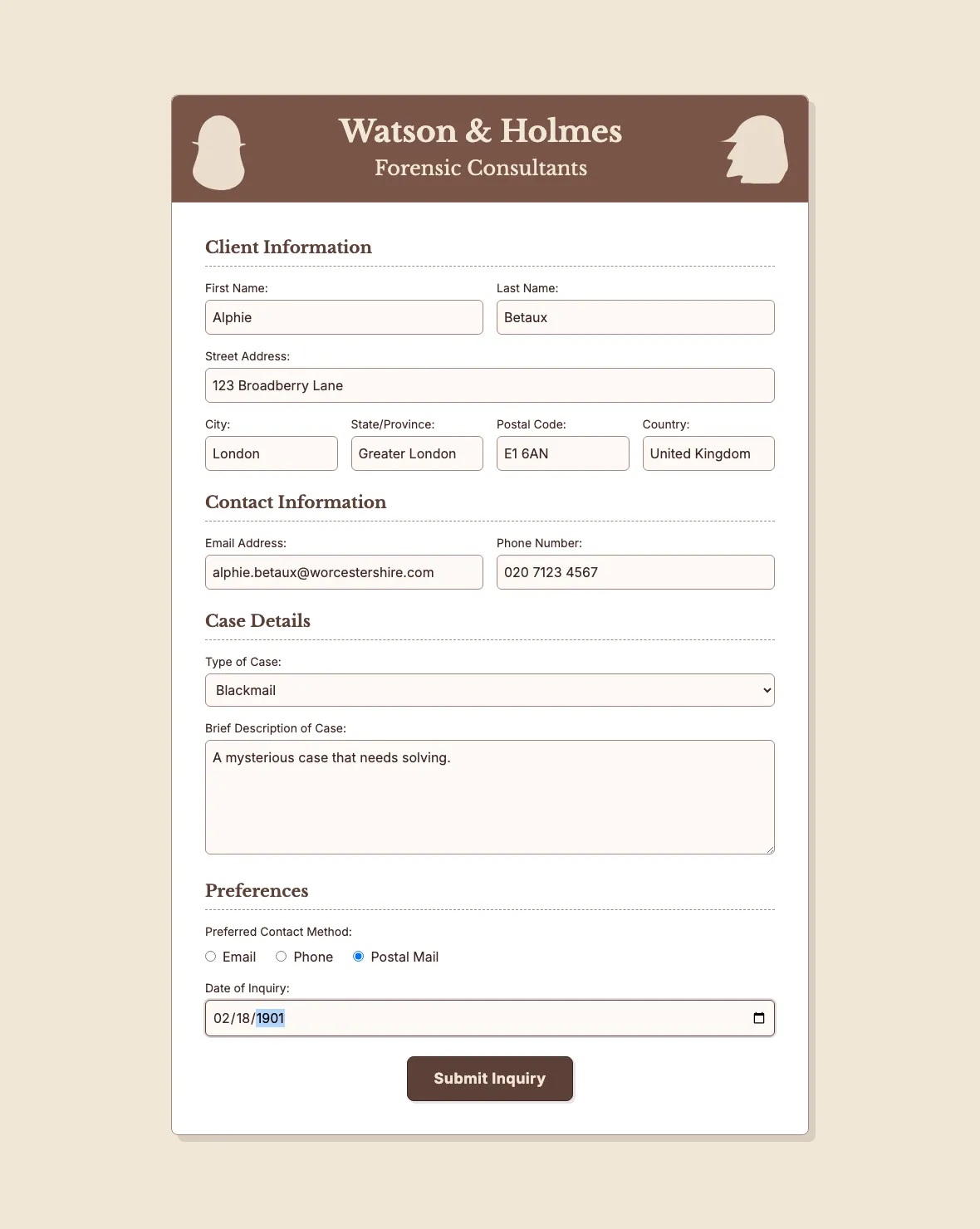
This example fills in all of the fields on the Watson and Holmes Intake Form, then captures a screenshot of the result for posterity.
The test spec is hosted online as a Markdown file, so you don’t need to download it. You pass its URL to Doc Detective with the --input argument, and Doc Detective fetches and runs it.
To run the test:
-
Set up your test environment so the sample form is served at
http://localhost:8080/watson_and_holmes_intake_form.html. -
Run the hosted form-filler2.md test spec with Doc Detective:
NPX
Docker
The form is too large to fit on the computer screen. Increasing the window and viewport settings lets you capture the entire form in a single image.
Code walkthrough
These are the notable additions to the spec used in the Fill in fields tutorial.
To capture the full form, this example runs in headless mode. The screenshot can then capture the entire virtual viewport.
Filling in most of the fields is the same as filling in the First and Last Name values in the previous example. You find an element by its label, click the element, then type a value.
You use the same syntax to enter the value in a drop-down menu; for example, the Type of Case.
You can click a radio button directly by name.
Use the screenshot action with an output path to capture the state of the form once the fields are complete.
Complete test spec
View the complete spec at form-filler2.md.
Next step: see Record video